Integration in Visual Studio Code
How to integrate the ADOxx MCP server in Visual Studio Code
Visual Studio Code (https://code.visualstudio.com/) is a popular code editor developed by Microsoft. It has built-in abilities to connect to external MCP servers.
This article describes how to configure Visual Studio Code to connect to the ADOxx MCP server.
Configuration
To set up a connection to an ADOxx MCP, in the Command Palette, open "MCP: Open User Configuration". This will open the mcp.json file that contains the configuration of MCP servers to connect to.
Configuration using Authorization header
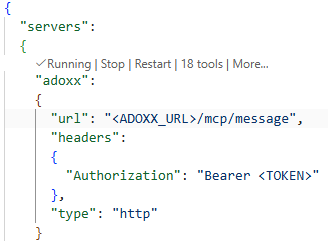
A sample configuration using the ADOxx MCP server will look like this:
{
  "servers":
  {
    "adoxx":
    {
      "url": "<ADOXX_URL>/mcp/message",
      "headers":
      {
        "Authorization": "Bearer <TOKEN>"
      },
      "type": "http"
    }
  }
}
<ADOXX_URL> is the URL at which the application is available (e.g. https://<HOST>:<PORT>/ADOxx), <TOKEN> is a generated OAuth 2 or OIDC token that can be generated via the oauth2/token or oidc/token endpoints or directly in the Authentication component on the Administration Page (https://docs.boc-group.com/adonis/en/docs/16.6/news/#oauth-20--oidc-generate-tokens--first-party-applications).
Configuration using Dynamic Client registration (OAuth2/OIDC)
Visual Studio Code is able to use the discovery mechanisms as well as support for dynamic client registration (DCR) that ADOxx offers to connect and authenticate to the ADOxx MCP server without having to provide the explicit Authorization header directly. Prerequisite is the activation of DCR in ADOxx (see OAuth2 Dynamic Client Registration, OIDC Dynamic Client Registratrion).
A sample configuration will then look like this:
{
  "servers":
  {
    "adoxx":
    {
      "url": "<ADOXX_URL>/mcp/message",
      "type": "http"
    }
  }
}
Depending on how the used ADOxx product is accessed, Visual Studio Code will use either OAuth2 or OIDC for the authentication:
- OAuth 2: If the used product is available directly at root level (e.g. http://<HOST>:<PORT>, MCP is e.g. available at http://<HOST>:<PORT>/mcp/message), Visual Studio Code will use OAuth 2.
- OIDC: If the used product is available at a deeper path (e.g. http://<HOST>:<PORT>/<PRODUCT>, MCP is e.g. available at http://<HOST>:<PORT>/<PRODUCT>/mcp/message), Visual Studio Code will use OIDC.
Testing the connection
With this configuration, Visual Studio Code will be able to connect to the ADOxx MCP server (either directly if the Authorization header is provided, or via authentication and grant using the browser) and fetch the list of available tools: